A Developer Cheat-Sheet for Lens
Some usefullensoperations that might be useful during development.
- Viewing namespace Pods
Selecting Workloads -> Pods will normally show ou all the Pods in all namespaces.
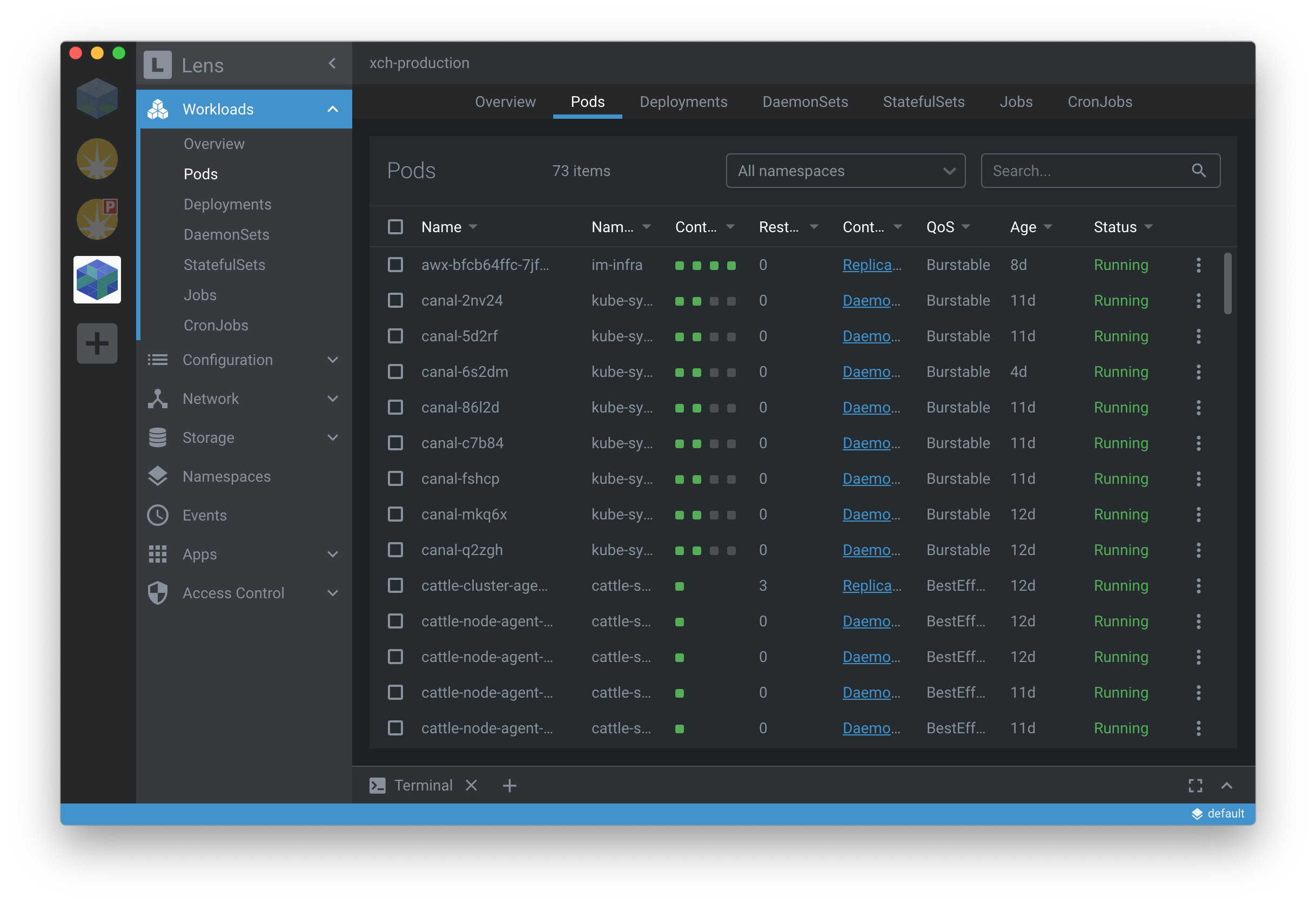
Use the Namespace Filter to select one (or more) namespaces you want to view. For example the Staging Stack…


- Display Pod container logs
With a Pod visible in the Workloads screen you can click it to see a description panel for the Pod slide-in from the right…
In the banner of the panel that’s presented you’ll see four icons representing the Shell, Logs, Edit and Delete actions…

Click the logs icon to see the Pod’s logs…

- Shell into a Pod container
With a Pod visible in the Workloads screen you can click it to see a description panel for the Pod slide-in from the right…
In the banner of the panel that’s presented you’ll see four icons representing the Shell, Logs, Edit and Delete actions…
Click the shell icon to be taken to an interactive shell in your chosen Pod…
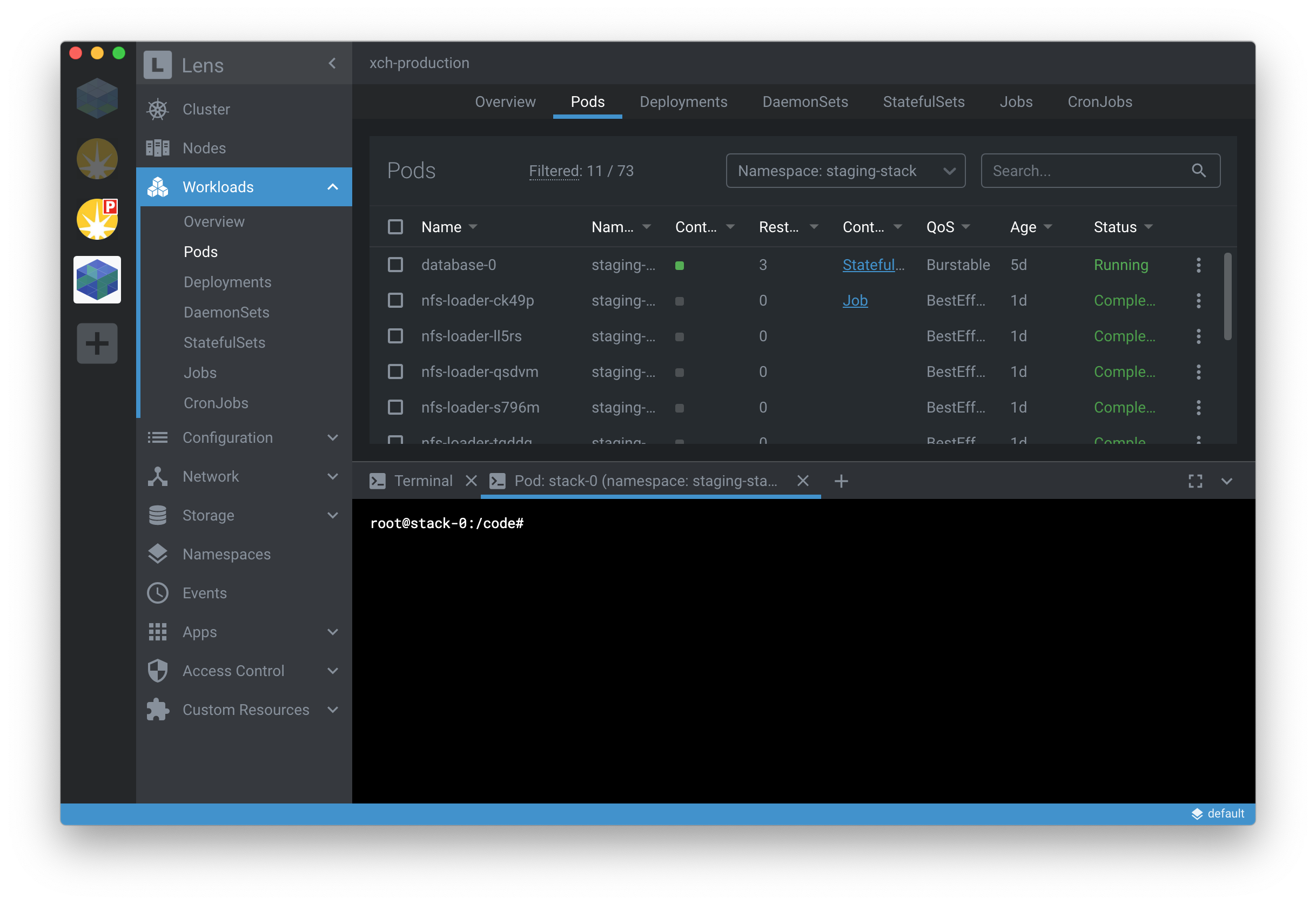
To exit the shell hit the shell terminal window’s close icon.
- Restarting a Pod (scale down and up)
In order to scale-up (or scale-down) a set of Pods you will need to edit their Deployment, or StatefulSet, whichever is appropriate. The Fragalysis Stack Pod, for example, is managed by a StatefulSet. With Workloads -> StatefulSets selected (and the appropriate Stack’s namespace chosen in the namespace filter) click Stack to see the its description.

Click the pencil (Edit) Icon in the description banner to be presented with the YAML representation of the stack’s StatefulSet.
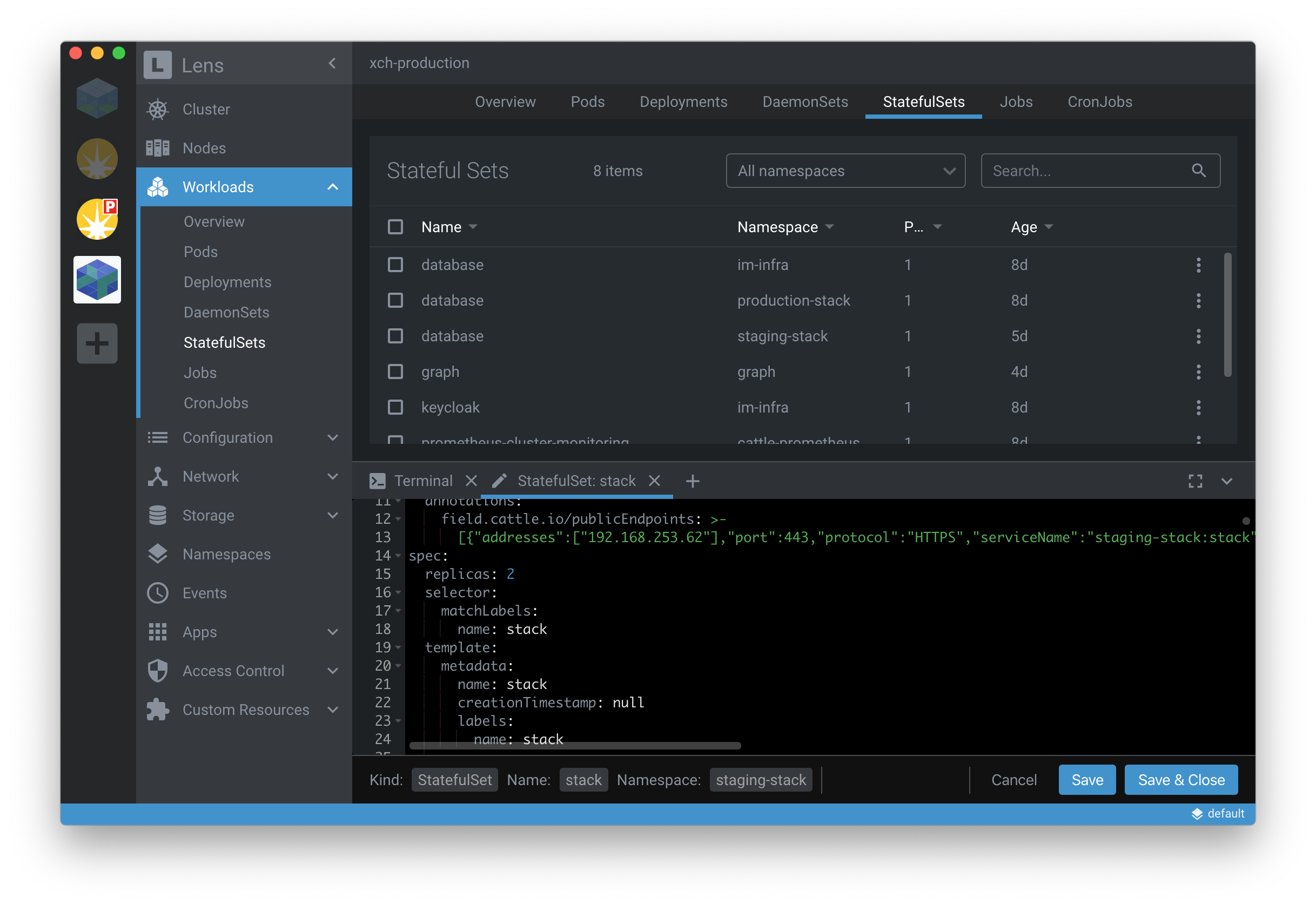
Scroll down if required to locate the
replicas:field. To scale-down the Pods set this to 0 and then click Save & Close. To scale the Pods up, set this field to 1 or more.